


How to: Upload And Post Pictures (56k Beware)


 How to: Upload And Post Pictures (56k Beware)
Hi guys
I thought I would help out some people who have trouble with posting pictures by starting a tutorial on it. So here we go!
1.) Go to www.photobucket.com and click the "Join Now" Button highlighted in the picture below.

2.) Now create a username that you will remember, along with a 8 character password.
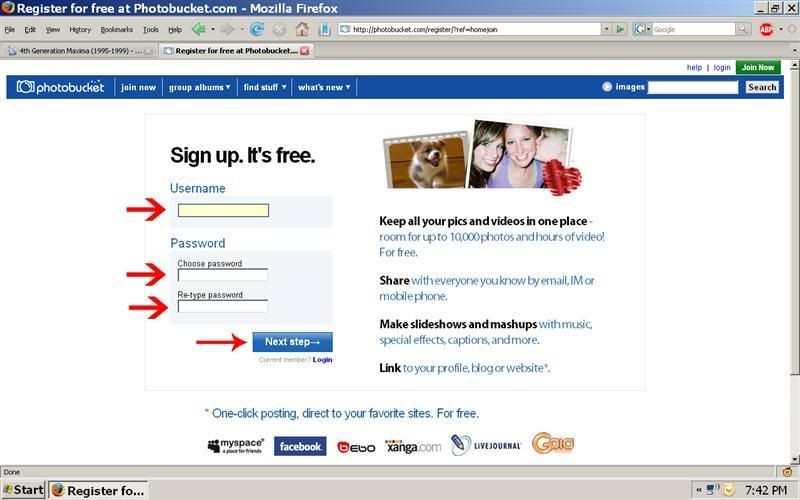
3.) Now enter in some more personal information, also highlighted in the picture below.

4.) Click the "here" button that is highlighted in the picture.

5.) Now click on "Upload Now"

I thought I would help out some people who have trouble with posting pictures by starting a tutorial on it. So here we go!
1.) Go to www.photobucket.com and click the "Join Now" Button highlighted in the picture below.
2.) Now create a username that you will remember, along with a 8 character password.
3.) Now enter in some more personal information, also highlighted in the picture below.
4.) Click the "here" button that is highlighted in the picture.
5.) Now click on "Upload Now"
Last edited by WhiteA32; Jun 20, 2008 at 05:57 PM.
6.) SWEET! Now your Photobucket account is all setup. Click on "Choose Files"

7.) Now a pop up comes up, find the location where your pictures are saved, and click the file (if you have more the one file hold CTRL on your keyboard and select the pictures you want) and click "Open"

8.) Wait for it to upload. This time will vary depending on how many pictures or the size of the picture your uploading, as well as your connection speed.

9.) Click Save and Continue

10.) Click on "edit images" then "resize"

7.) Now a pop up comes up, find the location where your pictures are saved, and click the file (if you have more the one file hold CTRL on your keyboard and select the pictures you want) and click "Open"
8.) Wait for it to upload. This time will vary depending on how many pictures or the size of the picture your uploading, as well as your connection speed.
9.) Click Save and Continue
10.) Click on "edit images" then "resize"
Last edited by WhiteA32; Jun 20, 2008 at 05:47 PM.
11.) Now select the picture(s) you want to resize.

12.) Change the resolution to either 800x600, or 1024x768. And click either "Save a Copy" or "Replace Original"

13.) Click on "My Album"

14.) Find [lmg] code text box.

15.) Click the box and you should see this.

12.) Change the resolution to either 800x600, or 1024x768. And click either "Save a Copy" or "Replace Original"
13.) Click on "My Album"
14.) Find [lmg] code text box.
15.) Click the box and you should see this.
Last edited by WhiteA32; Jun 20, 2008 at 05:58 PM.
16.) When you want to post your pictures, Right click, and click paste

17.) The [lmg] code gets pasted into the text box.

18.) Preview the post to make sure all the pictures work.

Click submit post...
And your good to go!
17.) The [lmg] code gets pasted into the text box.
18.) Preview the post to make sure all the pictures work.
Click submit post...
And your good to go!
Last edited by WhiteA32; Jun 20, 2008 at 05:59 PM.



I use imageshack.us. You don't have to sign up to use it. But well done. I hate clicking on links to see the pictures when people are too lazy to just upload them. Bout time someone posted a tutorial. Me thinks this is sticky material.





Thread
Thread Starter
Forum
Replies
Last Post
0m3nc0w
4th Generation Maxima (1995-1999)
3
Sep 11, 2015 05:21 PM
doctorpullit
8th Generation Maxima (2016-)
11
Sep 10, 2015 06:33 PM